 Mainframe Tutorial
 JCL Tutorial
 Introduction
 Mainframe Tips & Tricks
 Mainframe Interview Q&A
 Troubleshooting
 Mainframe Quiz
 Mainframe Online Tests
 Mainframe Jokes/Memes
 Mainframe Tools
 Contact us
 About us
Module 1: TSO Basics and Logon
 Backward

TSO- Basics and Logon
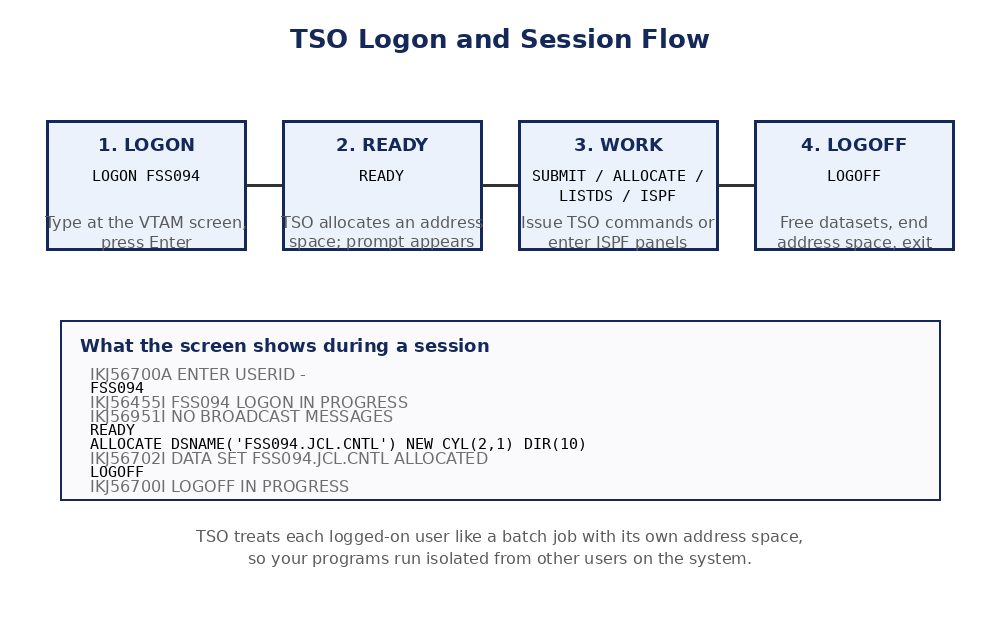
TSO stands for Time Sharing Option. It is the interactive interface of the z/OS mainframe operating system. When you log on to TSO, the mainframe starts a terminal session for you and treats it like a batch job, giving you your own address space to run commands and programs in.
ISPF (Interactive System Productivity Facility) is the menu-driven, full-screen front end that sits on top of TSO. You can use ISPF panels for most file work, but the raw TSO commands you learn here run underneath it and are still the fastest way to do many tasks.
What is TSO
- TSO lets many users share one mainframe at the same time, each in a separate session.
- Each TSO session gets a unique address space, so your programs and datasets are isolated from other users.
- TSO was first designed for teletype terminals, but today it is used through emulators such as TN3270.
- File handling, job submission and system messaging are all done through TSO commands.
- You type a command at the READY prompt and press Enter; TSO executes it and shows a READY prompt again.
TSO vs ISPF
- TSO commands are typed at the READY prompt (line mode). ISPF is a full-screen menu system on top of TSO.
- Almost every ISPF option has an equivalent TSO command. For example, ISPF option 3.2 (Dataset Utility) does the same job as the TSO ALLOCATE, DELETE and RENAME commands.
- Typing a TSO command from any ISPF panel is possible by prefixing it with TSO, for example TSO LISTDS 'FSS094.JCL.CNTL'.
- Learn both: ISPF is friendlier, but TSO commands are faster and can be put inside CLISTs and REXX programs.
How a TSO session works
- MVS (the operating system) starts a TSO user as if it were a batch job, with its own address space.
- The READY prompt means TSO is waiting for your next command.
- When you submit work, TSO runs it in your address space and prints results on your screen.
- Datasets stay allocated to your session until you FREE them or log off.
The LOGON procedure
- Open your TN3270 emulator and connect to the mainframe.
- You see a VTAM screen with the message IKJ56700A ENTER USERID -.
- Type the LOGON command with your user id and press Enter.
- TSO starts your session. Broadcast messages from the system operator may appear.
- When you see the READY prompt, your session is live and you can issue commands.
LOGON FSS094
READY
READY
Types of TSO messages
- Mode messages: tell you TSO is ready for a command. The READY prompt is a mode message.
- Prompt messages: appear when you enter a command wrong or leave out a required operand. They always end with a question mark, for example ENTER DATA SET NAME -.
- Informational messages: report progress, such as IKJ56702I DATA SET FSS094.JCL.CNTL ALLOCATED.
- Broadcast messages: written by the system operator or another TSO user. They are displayed when you log on.
The LOGOFF procedure
- To end your session, type LOGOFF at the READY prompt and press Enter.
- TSO frees your allocated datasets, ends your address space and disconnects you.
- Never just close the emulator window; always LOGOFF first so datasets are released cleanly.
READY
LOGOFF
IKJ56700I LOGOFF IN PROGRESS
LOGOFF
IKJ56700I LOGOFF IN PROGRESS
Attention interrupt
- Pressing the PA1 key (or equivalent in your emulator) sends an attention interrupt to TSO.
- It stops a command that is running too long and returns you to the READY prompt.
- This is the mainframe equivalent of Ctrl+C on a PC.